How to Copy FEN From the Chess.com Mobile App
The FEN export option is buried three taps deep inside Chess.com mobile — and its location shifts with every app update. This guide gives you the exact path on both Android and iPhone, plus how to paste the position straight into ChessAlgo for instant Stockfish analysis.
Open the Chess.com app → tap the game → tap Analyze → tap the three-dot menu (⋮) in the top-right corner of the analysis board → tap Share / Export → select Copy FEN. The FEN string is now on your clipboard. Open ChessAlgo in your browser, paste it into the FEN field, and tap Analyze for instant Stockfish evaluation.
📌 Key Takeaways
- FEN (Forsyth–Edwards Notation) is a single-line text string that recreates any chess position exactly — including castling rights, en passant squares, and side to move.
- Chess.com mobile hides the FEN export inside the Analysis board’s three-dot menu. It is not visible from the game review screen directly.
- The path is the same on Android and iPhone, though the share icon may look slightly different per OS.
- Pasting FEN into ChessAlgo loads the position in under a second with full Stockfish engine lines — no account or login required.
- If the FEN fails to load, check for a truncated clipboard copy or a space-spacing error — the most common cause of “invalid position” errors.
What Is a FEN String?
A FEN (Forsyth–Edwards Notation) string is a compact, single-line text format that encodes the complete state of a chess position — piece placement, side to move, castling rights, en passant target square, and move counters — so any chess engine or board viewer can reconstruct it instantly without replaying the full game.
Named after David Forsyth, who invented the notation in the 19th century, and later extended by Steven Edwards for computer use, FEN has been the universal position exchange format in chess software since the 1990s. Every major platform — Chess.com, Lichess, Fritz, ChessBase — reads and writes FEN.
Here’s what a real FEN string looks like for the starting position:
rnbqkbnr/pppppppp/8/8/8/8/PPPPPPPP/RNBQKBNR w KQkq - 0 1
Each slash-separated segment is a rank on the board. Uppercase letters are White pieces; lowercase are Black. The fields after the board placement encode turn, castling availability, en passant, half-move clock, and full-move counter.
You don’t need to understand every field to benefit from FEN. The workflow is simple: copy from Chess.com, paste into ChessAlgo, and analyze.
Skip Move Replay
Instead of stepping through 30 moves every time you switch tools, one paste loads the exact moment you care about.
Share Any Position
Text is universally portable. Paste a FEN into a message, a document, or an engine — it works everywhere.
Isolate Tactics
Identify the critical position in a game, copy the FEN, and study that specific moment for as long as you want.
Use Stronger Engines
Load positions into ChessAlgo’s Stockfish implementation for deeper candidate move comparison than most mobile apps offer.

How to Copy FEN From Chess.com Mobile — Step by Step
To copy FEN from Chess.com mobile, open a game, enter the Analysis board, navigate to the three-dot menu in the top-right corner, tap Share / Export, and select Copy FEN. The process takes about 5 taps and under 30 seconds on both Android and iPhone versions of the app.
Open Your Game or Position in Chess.com
Launch the Chess.com app and tap the game you want to analyze. This works for finished games in your game archive, live board positions, puzzle positions, or any custom setup you’ve saved. The FEN export tool is available for all of these.
Navigate to the Position You Want to Export
Use the move navigation arrows at the bottom of the board to reach the exact position you need. The FEN will capture whichever board state is currently displayed — not the start or end of the game automatically.
Tap “Analyze” to Open the Analysis Board
Look for the Analyze button or the graph/bar chart icon below the board. Tapping it opens the full analysis board mode. This is important: the FEN export option is only available inside the analysis view, not from the regular game review screen.
Tap the Three-Dot Menu (⋮) in the Top-Right Corner
Inside the analysis board, look for the vertical three-dot icon (⋮) in the top-right corner of the screen. Tapping it opens a context menu with several options including Share, Export, and board settings. This is where the FEN tool lives.

Tap “Share / Export” → Select “Copy FEN”
From the dropdown, tap Share / Export. A panel appears with several format options: PGN, FEN, and possibly a link share. Tap Copy FEN. The position’s FEN string is now on your device clipboard — you’ll typically see a brief confirmation toast (“Copied to clipboard”).
Paste Into Your Analysis Tool of Choice
FEN is a universal format — you can paste the copied string into any engine or board tool that accepts FEN input. The three most popular destinations are ChessAlgo (browser-based, no login), Lichess Analysis Board (free, open-source, strong engine), and ChessBase (desktop software, used by professionals). In ChessAlgo and Lichess, tap the FEN input field, long-press → Paste, and the position loads immediately.
Any tool that accepts FEN will recreate the exact board position — all pieces in place, correct side to move, castling rights preserved, en passant square maintained. An engine then calculates the top lines immediately, so you can compare candidate moves without manually rebuilding anything.
Where Can You Paste a Copied FEN?
A FEN string copied from Chess.com mobile is compatible with any chess analysis tool that has a FEN input field. The most widely used options are ChessAlgo (browser-based, no login), Lichess Analysis Board (free and open-source), and ChessBase (professional desktop software). All three accept the same FEN format.
FEN is an open, platform-neutral standard — the same string works everywhere. Here’s how the most common tools compare for mobile-first workflows:
| Tool | Platform | Login Required | Engine | Best For |
|---|---|---|---|---|
| ChessAlgo | Browser (any device) | No | Stockfish (WASM) | Quick mobile-to-browser analysis, candidate move comparison |
| Lichess Analysis Board | Browser / iOS / Android app | No | Stockfish (cloud + local) | Free, open-source analysis; strong community; unlimited depth |
| ChessBase | Windows desktop | Yes (subscription) | Multiple engines | Professional preparation, database search, opening repertoire |
| Chess.com Analysis (desktop) | Browser | Yes (free account) | Stockfish (limited depth on free tier) | Staying within Chess.com ecosystem; quick review |
For most club and online players doing post-game study on a phone, the practical choice is between ChessAlgo and Lichess — both run in a mobile browser with zero setup, and both give you full Stockfish access at no cost. ChessBase is the right tool if you’re working with large opening databases or preparing for over-the-board tournaments.
This guide is published by ChessAlgo, and we naturally recommend our own tool. But the FEN you copy works equally well in Lichess and other engines. Choose whichever interface suits your study style — the position data is identical regardless of where you paste it.
Android vs iPhone: Are There Differences?
The FEN copy workflow is functionally identical on Android and iPhone. The main difference is cosmetic: Android tends to show the three-dot (⋮) overflow icon, while iPhone may display a native iOS share sheet icon. Both routes lead to the same Copy FEN option in under 5 taps.
| Detail | Android | iPhone (iOS) |
|---|---|---|
| Export icon style | Three-dot menu (⋮) | Share sheet or three-dot (varies by version) |
| Clipboard confirmation | Toast notification at bottom | Brief banner or no visual (copied silently) |
| Steps to Copy FEN | ~5 taps | ~5–6 taps |
| App version sensitivity | Medium (UI changes with updates) | Medium (same) |
| Browser paste behavior | Long-press → Paste | Long-press → Paste |
If you updated Chess.com recently and the menu looks different, that’s normal. Chess.com redesigns its mobile UI a few times per year. The FEN export option has remained present through all recent versions — it just moves around slightly.
What Does a Copied FEN String Contain?
A FEN string copied from Chess.com mobile contains six space-separated fields: (1) piece placement for all 8 ranks, (2) whose turn it is to move, (3) castling availability for both sides, (4) en passant target square if applicable, (5) the half-move clock for the 50-move rule, and (6) the full move number.
| FEN Field | Example | What It Encodes |
|---|---|---|
| Piece placement | r1bqk2r/ppp2ppp/… | Every piece on every square, rank by rank from rank 8 down to rank 1. |
| Side to move | w or b | Whether it is White’s or Black’s turn. Critical for engine accuracy. |
| Castling rights | KQkq | Which castling moves are still legal for each side. |
| En passant square | e3 or - | Target square if an en passant capture is currently available. |
| Half-move clock | 0 | Moves since the last pawn move or capture. Used for the 50-move draw rule. |
| Full move number | 24 | Current move number in the game. Increments after Black moves. |
Common FEN Export Problems and How to Fix Them
The four most common FEN problems on Chess.com mobile are: the wrong position loaded (you copied before navigating to the right move), a partial clipboard copy (the full string was not transferred), an incorrect side-to-move field, and an “invalid FEN” error caused by extra spaces or a missing field after the board placement.
Wrong Position Loaded
You copied the FEN before stepping to the correct move. Return to Chess.com, navigate to the exact move, then copy again.
Partial Copy / Truncated FEN
Some mobile clipboard managers cut long strings. Close other apps, return to Chess.com, and copy the FEN again. Verify in ChessAlgo’s input field that all 6 fields are present.
Wrong Side to Move
If the engine recommends moves that look backwards, the w/b field may be wrong. You can manually change it in ChessAlgo’s FEN editor.
“Invalid FEN” Error
Usually caused by a double space between fields or a missing move counter. Check that the FEN has exactly 5 spaces separating the 6 fields. Most editors highlight which field is broken.
Chess.com redesigns its mobile UI several times per year. If the steps above don’t match what you’re seeing, here are three reliable fallback paths that have remained consistent across versions:
Fallback 1 — Search within the app: Use Chess.com’s in-app help search (usually a “?” icon in settings) and type “FEN”. This surfaces the export option directly regardless of where it’s been moved.
Fallback 2 — Use Chess.com desktop instead: On a desktop browser, the FEN export is more consistently located under Analysis → Share → FEN in the top toolbar. Copy from desktop, paste into your analysis tool on any device.
Fallback 3 — Check Chess.com’s support docs: Chess.com’s official analysis board documentation is updated after major UI changes and will always reflect the current menu layout.
This guide is maintained alongside Chess.com app updates. Last verified: May 2026 (app v5.x).
Paste FEN Into ChessAlgo: What Happens Next
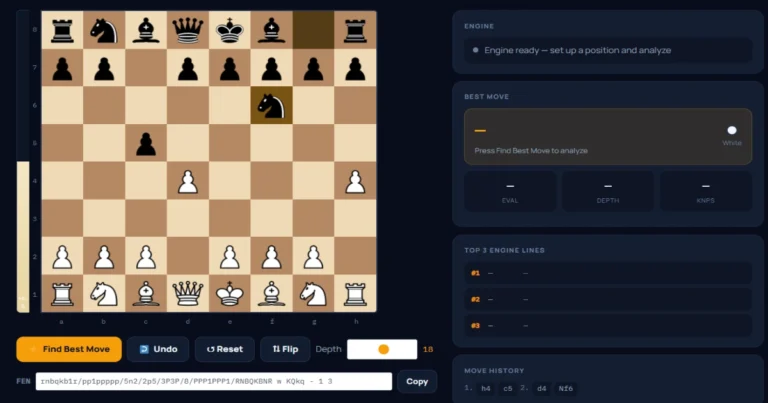
When you paste a FEN string into ChessAlgo’s Chess Move Calculator, the board instantly renders the exact position — correct piece arrangement, castling state, and active side. Stockfish then calculates the top engine lines at your chosen depth, displaying candidate moves ranked by centipawn evaluation so you can compare continuations side by side.

Where this workflow genuinely speeds up improvement is candidate move comparison. Instead of the engine showing one best move and moving on, you can see why 1.Nf5 at +2.1 is stronger than 1.Qh5 at +1.4 — and understand the specific attacking idea behind each.
| Candidate Move | Evaluation | Engine Idea |
|---|---|---|
| 1. Nf5! | +2.1 | Knight forks king and rook after discovered check threat. Forces material gain or positional concession. |
| 1. Qh5 | +1.4 | Creates kingside pressure but allows …g6 defensive response that defuses the attack. |
| 1. Re1 | +0.7 | Improves the rook but misses the tactical moment. Advantage shrinks as Black consolidates. |
This comparison is where FEN-based workflows beat passive game review. You don’t just learn what the computer played — you understand why one idea works and another falls short.
Paste Your FEN Into ChessAlgo Now
You’ve copied the position. Load it instantly in ChessAlgo — no account, no setup. Compare engine lines and understand the ideas behind the moves.

Alex Torres has tested FEN-based analysis workflows across Chess.com, Lichess, and ChessBase for over six years. He founded ChessAlgo to give club and online players access to clean, friction-free browser engine analysis without the complexity of desktop software. His guides focus on practical study systems: how to isolate positions, compare engine lines, and actually improve — not just watch engines play.
Frequently Asked Questions
These questions cover what players most commonly search when looking for FEN export help on Chess.com mobile. Each answer is written to be independently useful.
Where is the FEN option in the Chess.com mobile app?
The FEN option is inside the Analysis board, not the regular game review screen. Once you’re in Analysis mode, tap the three-dot menu (⋮) in the top-right corner, then tap Share / Export. The Copy FEN button appears in the panel that slides up. If you don’t see it, make sure you’ve fully entered Analysis mode rather than the basic game review.
Can I copy FEN from Chess.com on iPhone?
Yes. The process is the same on iOS as on Android. On iPhone, the export icon may look like a share sheet symbol rather than three dots, but it opens the same panel with the Copy FEN option. Both Android and iPhone use the same app codebase for this feature.
Does copying FEN preserve castling rights and en passant?
Yes. A properly exported FEN from Chess.com encodes all six FEN fields, including castling availability (KQkq) and en passant target square. When you paste it into ChessAlgo, those rules are respected exactly — the engine won’t suggest illegal castling or miss a valid en passant capture.
Why is my pasted FEN showing an error in ChessAlgo?
The most common cause is a truncated copy — the full string didn’t transfer to your clipboard. Try copying again from Chess.com and check that the FEN in ChessAlgo’s input box shows all six fields separated by single spaces. A double space anywhere in the string is enough to trigger an invalid position error.
What’s the difference between FEN and PGN?
FEN encodes a single position — one snapshot of the board. PGN (Portable Game Notation) encodes an entire game as a sequence of moves. If you want to analyze a specific moment mid-game, FEN is faster. If you want to replay the full game move by move, PGN is the right format.
Can I copy FEN from a Chess.com puzzle?
In most cases, yes — if you can enter Analysis mode from the puzzle screen. Some puzzle types lock Analysis access until the puzzle is solved or on certain subscription tiers. For custom-set positions or your own games, Analysis mode is always available.
Do I need a Chess.com account to copy FEN?
You need an account to access your own game archive, but if you’re viewing a publicly shared game or a position you’ve set up manually, you can export FEN without a premium subscription. ChessAlgo itself requires no account at all — paste the FEN and analyze immediately.
Why use FEN instead of a screenshot?
Screenshots show the board visually but carry no data a computer can interpret. An engine cannot analyze a photo. FEN is machine-readable text — any chess engine or analysis tool (ChessAlgo, Lichess board editor, Fritz, ChessBase) can load it instantly and calculate the best continuation. Screenshots are useful for sharing with humans; FEN is useful for analysis.
Is ChessAlgo free to use with copied FEN?
Yes. You can paste any FEN position into ChessAlgo’s Chess Move Calculator and run the engine directly in your browser at no cost and without creating an account. The tool is designed specifically for this use case: quick position analysis after copying from Chess.com or another platform.
What chess positions can I export FEN for?
Any legal chess position that Chess.com’s analysis board can display is exportable as FEN. This includes positions from your own games, opponent games you’ve reviewed, puzzles, opening theory positions, endgame studies, and custom board setups. The only limitation is positions that violate chess rules — no two kings on the same square, for example.
The Bottom Line on Copying FEN From Chess.com Mobile
Most players ignore FEN for years, then wonder why switching analysis tools feels so slow. Once you start copying FEN routinely, the friction disappears. You stop rebuilding positions manually and start spending that time on what actually matters: understanding why one move is better than another.
The Chess.com mobile app makes it slightly harder to find the option than it should be — the three-tap path into the analysis board’s export menu isn’t obvious on first encounter. But once you know the route, the whole workflow takes under 30 seconds.
Open the app, navigate to the position, enter Analysis, open the menu, copy FEN, paste into ChessAlgo. That’s it. The engine does the rest.
Use Chess.com mobile for playing, puzzles, and quick post-game review. Use ChessAlgo for deeper candidate move comparison and tactical study. The two tools complement each other — FEN is the bridge between them.